Design
Overview
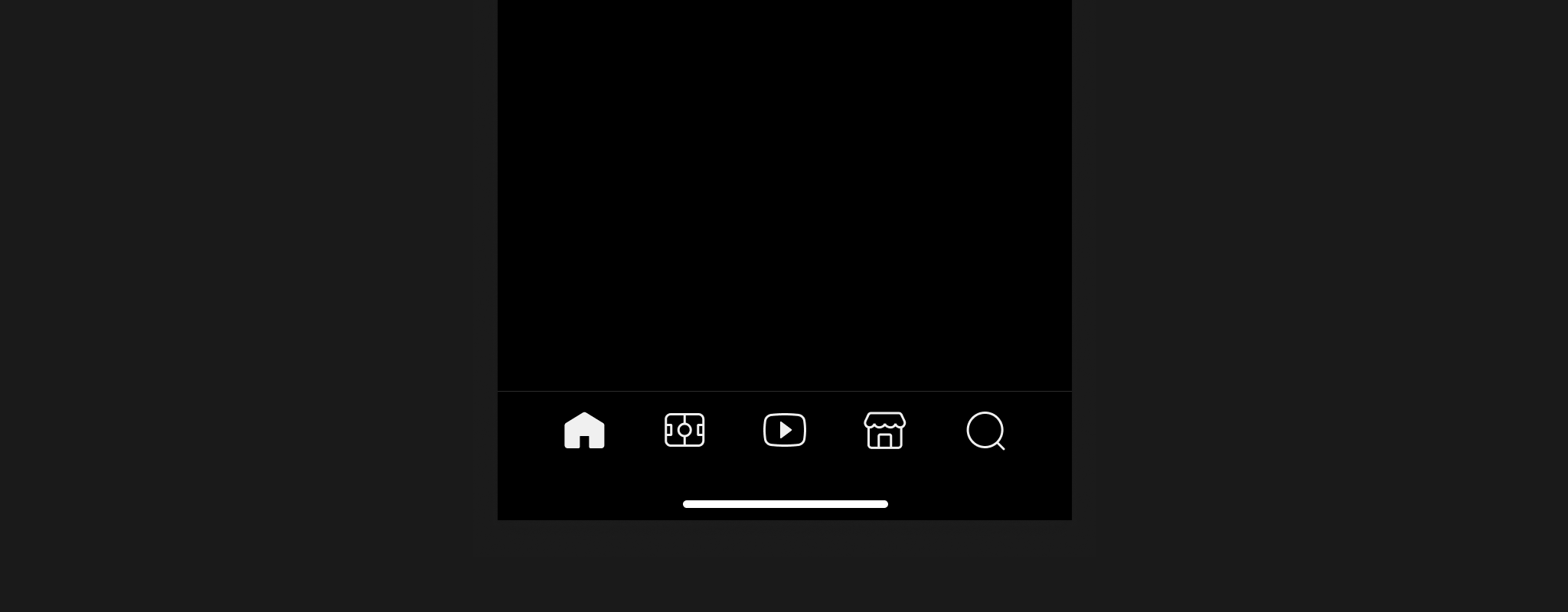
The Navigation Bar is the row of up to five destinations pinned to the bottom of the screen that moves a fan between the app's main experiences.
Usage
Navigation Behaviour
The Navigation Bar items will navigate to a destination’s top-level screen. Any prior fan interactions and temporary screen states are reset, such as scroll position, tab selection, and in-line search.
Maximum Navigation Items
To avoid congestion, the Navigation Bar will be limited to 5 items.
Navigation Bar Visibility
To enhance the experience, the navigation bar is generally hidden when navigating away from the main tabs. This reduces distractions, maximises screen space, and provides a cleaner, more focused interface, especially on content-heavy pages where fans want to immerse themselves.
However, we will show the navigation bar on the following screens:
- Any screen directly accessible from the main navigation (e.g. Home, Matches, TV, FanShop)
- Top-level Match Pages (e.g. the nav bar will be hidden when navigating to a secondary experience within a Match Page)
- Top-level Entity Pages (e.g. the nav bar will be hidden when navigating to a secondary experience within an Entity Page)
- FanShop PLPs (e.g. the nav bar will be hidden when navigating to Product Detail Pages and throughout checkout)
These are considered core experiences where fans are more likely to move between them. Maintaining the navigation bar in these areas supports exploration and ensures fans can easily transition between them.
The nav bar will remain hidden on deeper, more immersive pages, such as articles or detailed stats, where the focus is on consuming content rather than navigation.
Design
Appearance
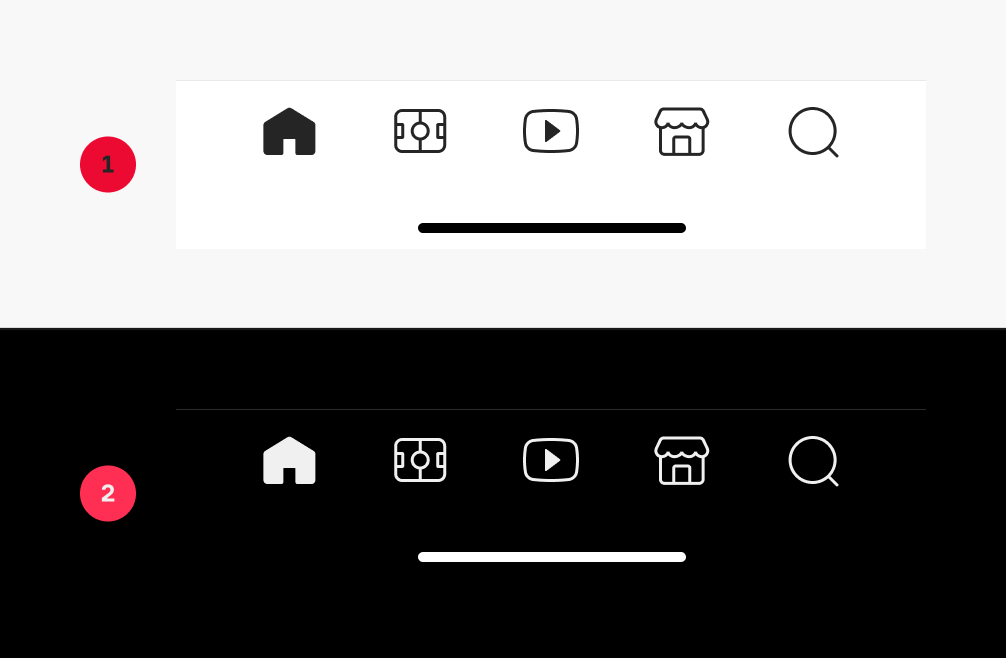
|
Item |
Usage |
|---|---|
|
1 |
Light Mode |
|
2 |
Dark Mode |
Anatomy
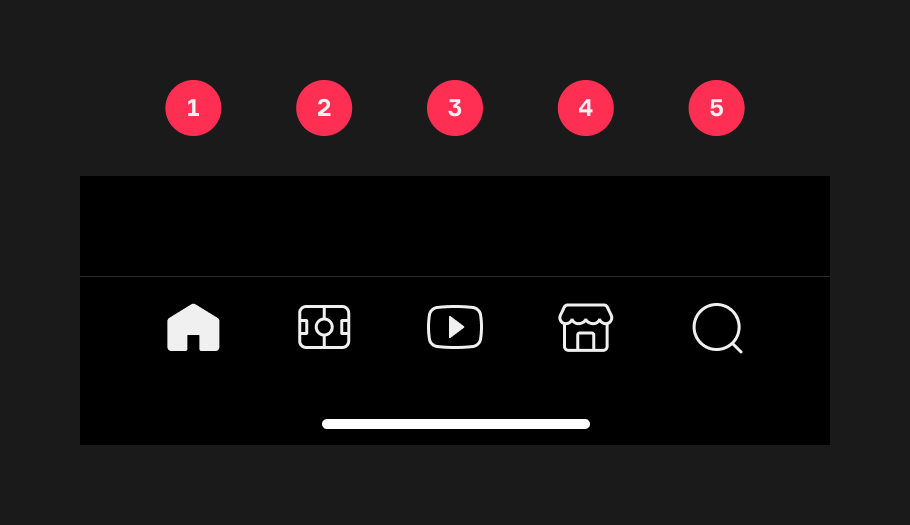
|
Item |
Usage |
|---|---|
|
1 |
Home |
|
2 |
Matches |
|
3 |
Play |
|
4 |
Marketplace |
|
5 |
Search |